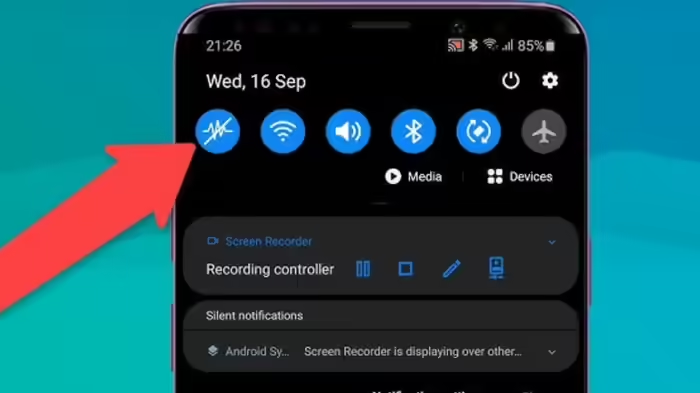
Have you ever discussed a product with someone, only to see advertisements or social media reels about the same thing moments later? If yes, you’re not alone. Many smartphone users suspect that their phones are constantly listening to them. While the reality is more complex, Android smartphones do offer a powerful hidden feature that gives users full control over their device’s sensors—and, in turn, their privacy.
This feature is called “Sensor Off.” With just a single tap, it allows users to disable almost all sensors on their phone, including the microphone and camera.
What Is the ‘Sensor Off’ Feature?
Modern smartphones are equipped with multiple sensors—such as microphones, cameras, accelerometers, gyroscopes, and proximity sensors—that help devices function smartly. However, many apps access these sensors in the background, often without users realizing it.
To address privacy concerns, Android includes a lesser-known Sensor Off option. Once enabled, this setting allows users to turn off all major sensors on their phone instantly, giving them complete control over when their device can “see” or “hear.”
Why Turning Sensors Off Matters
Activating the Sensor Off feature offers two major benefits:
- Enhanced Privacy:
By disabling sensors, you prevent apps from accessing the microphone, camera, and other hardware components, reducing the risk of unauthorized data collection. - Improved Battery Life:
Background sensor usage consumes power. Turning sensors off when not needed can help conserve battery and improve overall performance.
In an era where digital privacy is becoming increasingly important, this simple setting can make a big difference.
How to Enable Sensor Off on Your Android Phone
To access this feature, you first need to enable Developer Options, which is a hidden menu in Android. Here’s how to do it:
- Open Settings on your phone.
- Scroll down and tap on About Phone.
- Find Build Number and tap on it 7–10 times consecutively.
- You will see a message confirming that Developer Options have been enabled.
Turn On the Sensor Off Option
Once Developer Options are active:
- Go back to Settings and open Developer Options.
- Scroll down to Quick Settings Developer Tiles.
- Enable the toggle for Sensor Off.
After this, a new Sensor Off button will appear in your phone’s Quick Settings panel—the menu that appears when you swipe down from the top of the screen to access Wi-Fi, Bluetooth, and other shortcuts.
One Tap for Total Control
With the Sensor Off button available in Quick Settings, you can now turn all sensors on or off with a single tap. This gives users unprecedented control over their smartphone’s behavior and ensures peace of mind in a digital world increasingly driven by data.
In short, your smartphone doesn’t have to spy on you—if you know where to look.
Discover more from SD NEWS agency
Subscribe to get the latest posts sent to your email.