A slow-performing smart TV is a common problem—and often an expensive one if you rush to replace it. Long boot times, apps taking forever to open, or constant lag can be frustrating enough to make anyone consider buying a new television. But before you spend a hefty amount on an upgrade, it may be worth checking a few simple settings.
I faced the same issue with my smart TV. It had become sluggish over time, and daily use felt irritating. However, instead of immediately replacing it, I tried making a few basic changes in the settings. To my surprise, the TV’s performance improved significantly and felt almost as fast as when it was new. Based on my experience, here are some practical steps you should try before investing in a new smart TV.
Keep Your TV Software Updated
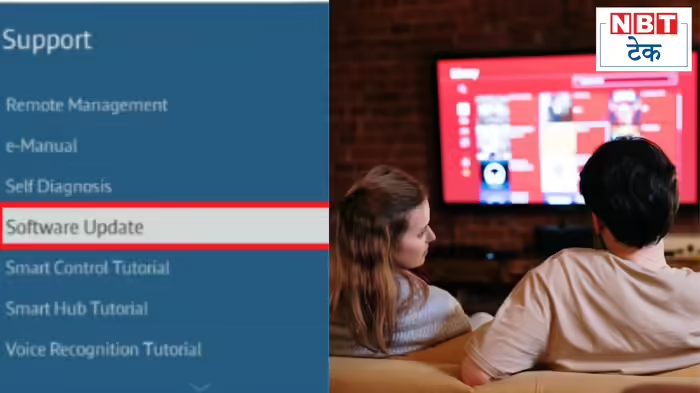
Just like smartphones, smart TVs also require regular software updates. Many users remember to update their phones but often overlook TV updates. Outdated software can cause performance issues, bugs, and system instability.
Go to your TV’s settings menu and check if a software update is available. Some older TV models may not support automatic updates, but manufacturers usually provide firmware files on their official websites. These can be downloaded onto a USB drive and installed manually. While updates may not fix every issue, they often improve system stability and overall speed.
Turn Off Power-Saving Mode
Power-saving modes are designed to reduce electricity consumption by limiting the TV’s processing power. While this helps save energy, it can slow down menus, delay app launches, and even affect video playback quality.
Check your TV’s display and system settings to see if any power-saving or eco modes are enabled. These modes often reduce screen brightness and refresh rate. Turning them off allows the TV to operate at full capacity, resulting in smoother navigation and better video playback.
Remove Unused Apps
Like smartphones, smart TVs have limited storage and memory. Installing too many apps can fill up storage, causing the TV to slow down and apps to take longer to load.
Go to the app management section and uninstall apps you no longer use. If storage is still tight, clearing app cache can also help. Keeping only essential apps ensures better memory management and improves overall performance.
Check Your Internet Connection
Sometimes, the problem isn’t the TV at all—it’s the internet connection. If videos buffer frequently or take a long time to load, weak or unstable internet may be the culprit.
A router placed too far from the TV or too many devices connected to the same network can reduce speed. For a more stable connection, consider connecting your TV directly to the router using an Ethernet cable. A wired connection usually offers better streaming quality, faster loading times, and reduced buffering.
Bottom Line:
A slow smart TV doesn’t always mean it’s time for a replacement. Simple tweaks like updating software, disabling power-saving modes, managing apps, and improving internet connectivity can make a noticeable difference. Try these steps first—you might just save yourself the cost of buying a new TV.
Discover more from SD NEWS agency
Subscribe to get the latest posts sent to your email.