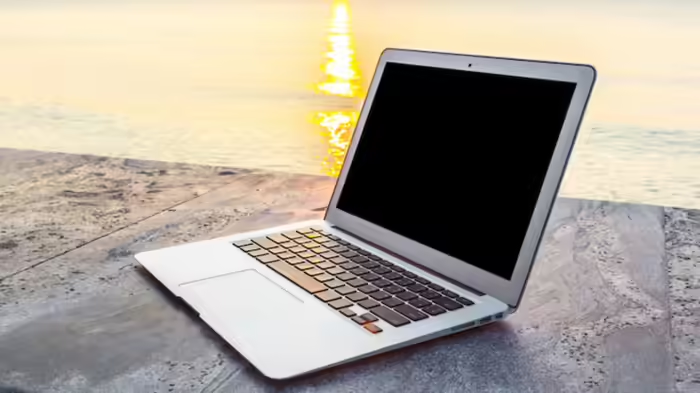
Laptop keyboards can suddenly stop working or develop issues with certain keys, causing major disruptions in your work. Often, the immediate reaction is to rush to a technician. However, in many cases, the problem can be resolved at home with some simple troubleshooting steps. Before visiting a service center, try these five methods that can fix most keyboard issues.
1. Reboot Your Laptop
Sometimes, minor glitches can be resolved simply by restarting the laptop. If you cannot shut down using the mouse or trackpad, press and hold the power button for 10–15 seconds. Once the laptop powers off, turn it on again. If the problem persists, try booting in Safe Mode. Safe Mode runs only essential programs and helps determine whether the issue is hardware- or software-related. Note that the process to enter Safe Mode differs for Windows and Mac.
2. Clean the Keyboard
Many keyboard problems are caused by dirt and debris. Hold the laptop at a 45–75 degree angle and gently shake it to dislodge crumbs or dust. Use compressed air to clean between the keys. For sticky keys, apply a small amount of soapy water or rubbing alcohol to a cloth, and gently clean the key—avoid pouring liquids directly onto the keyboard. If the keyboard has been damaged by liquid, professional replacement is usually required.
3. Check Keyboard Drivers
Keyboard malfunctions can sometimes be due to corrupted drivers. On Windows, open the Start menu and search for “Device Manager,” then go to the Keyboard section. A yellow warning sign indicates a problem. Right-click the keyboard and select “Uninstall,” then restart the laptop—Windows will reinstall the driver automatically. If the issue remains, download the latest driver from the manufacturer’s website. On Mac, check for updates under System Settings and perform a power reset by holding the power button for 10 seconds. Correcting drivers often resolves software-related keyboard issues.
4. Inspect the Battery
In some laptops, the battery sits directly under the keyboard. A swollen battery can press against the keys, causing malfunctions. If removable, power off the laptop and remove the battery, then try running the laptop on charger power alone. If the keyboard works, replace the battery with an original one from the manufacturer. This problem is more common in older laptops.
5. Check Keyboard Connection
If the laptop has been dropped, the keyboard’s ribbon cable may become loose. If you are comfortable opening your laptop, reconnect the ribbon cable according to the manufacturer’s instructions. Otherwise, it is advisable to take the laptop to an authorized service center.
By following these simple steps, users can often resolve keyboard problems without spending extra money on technician services.
Discover more from SD NEWS agency
Subscribe to get the latest posts sent to your email.