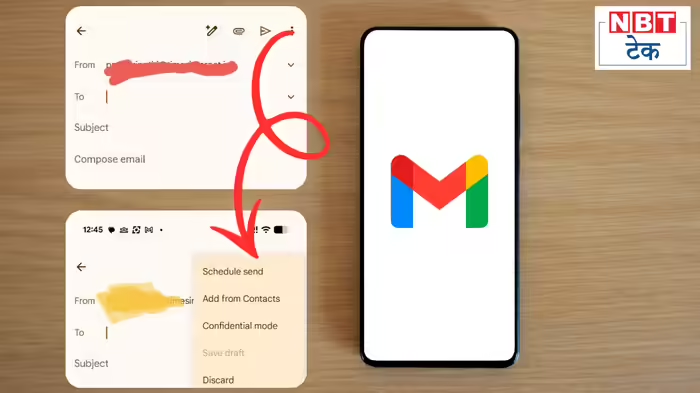
Sending emails on time is often a challenge, especially when busy schedules or late nights get in the way. Gmail’s “Schedule Send” feature can be a game-changer for those who need to send emails at a specific time but might forget.
A friend of mine recently missed sending his weekly work report to his boss at 7 a.m. after a weekend party. This prompted me to explore Gmail’s features on my smartphone, where I discovered the Schedule Send option. This handy tool allows you to compose an email in advance and schedule it to be sent automatically at a chosen time.
How to Use Schedule Send on Mobile
- Open the Gmail app on your smartphone.
- Compose your email or paste the content you want to send.
- Enter the recipient’s email ID and subject. Tap the three dots on the top-right corner.
- Select Schedule Send from the menu.
- Choose a suggested time (morning, afternoon, or evening) or set a custom date and time.
- Tap Schedule Send, and your email will be sent automatically at the scheduled time.
Schedule Emails from Your Laptop or Computer
The Schedule Send feature is also available on Gmail’s web interface:
- Open Gmail on your laptop or desktop.
- Click Compose and draft your email.
- After entering the recipient and subject, click the arrow next to the blue Send button.
- Select Schedule Send, and choose the desired time and date.
This simple trick is particularly useful for professionals who need to send reports, reminders, or important emails at precise times. With Schedule Send, you can ensure your emails are delivered on time, even if your schedule doesn’t allow it.
Discover more from SD NEWS agency
Subscribe to get the latest posts sent to your email.