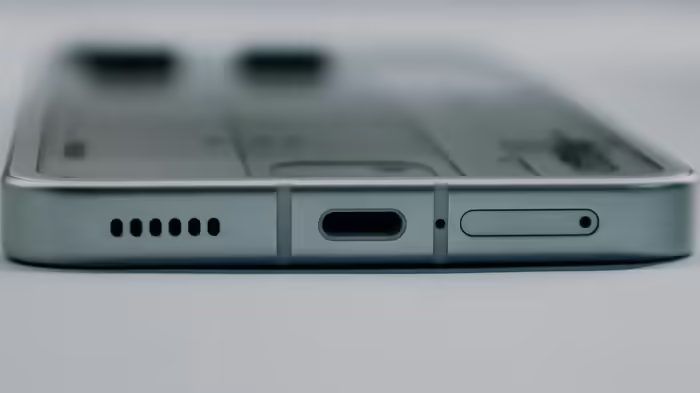
If the person on the other end of your phone call keeps saying “Hello, hello” but cannot hear your voice clearly, the problem may not be the network—it could be your smartphone’s microphone.
Low microphone volume during calls, video meetings, or voice recordings is a common issue, especially as smartphones age. In most cases, the problem is not due to serious hardware damage but caused by dust, incorrect settings, missing permissions, or outdated software. The good news is that many of these issues can be fixed easily at home without visiting a service center.
Why Does Smartphone Microphone Volume Drop?
There are several common reasons why your voice may sound faint or unclear:
- Dust or dirt buildup: The tiny microphone holes can get clogged with dust, especially when phones are kept in bags or pockets.
- Phone covers or tempered glass: Some covers unintentionally block the microphone opening.
- App permission issues: If the problem occurs only on apps like WhatsApp or Zoom, microphone access may not be enabled.
- Outdated software or bugs: Missing updates can cause microphone-related glitches.
- Moisture exposure: Water or humidity can temporarily affect microphone performance.
Step 1: Clean the Microphone Gently
Start by carefully cleaning the microphone area. Use a soft brush, toothpick, or air blower to remove dust from the microphone hole. Avoid using sharp objects or liquids, as these may cause damage.
Step 2: Remove the Phone Cover
Temporarily remove your phone cover and test the microphone again. In many cases, thick or poorly designed covers partially block the microphone, reducing sound clarity.
Step 3: Check for Software Updates
An outdated operating system can also affect microphone performance.
Go to Settings → Software Update and install the latest available update to fix possible bugs.
Step 4: Verify App Microphone Permissions
If the issue occurs only in a specific app:
- Go to Settings
- Tap Apps
- Select the affected app
- Open Permissions
- Ensure Microphone access is set to “Allow”
This step often resolves app-specific audio problems.
Step 5: Restart Your Smartphone
Sometimes, a simple restart is enough. Rebooting the phone can clear temporary software bugs and restore normal microphone function.
When to Seek Professional Help
If none of these steps work, the microphone may have suffered hardware damage and professional repair may be required. However, in most cases, these simple fixes are enough to restore clear voice quality.
Bottom Line
A low or unclear microphone does not always mean an expensive repair. With basic cleaning, correct settings, and updated software, most smartphone microphone issues can be resolved at home—saving both time and money.
Discover more from SD NEWS agency
Subscribe to get the latest posts sent to your email.