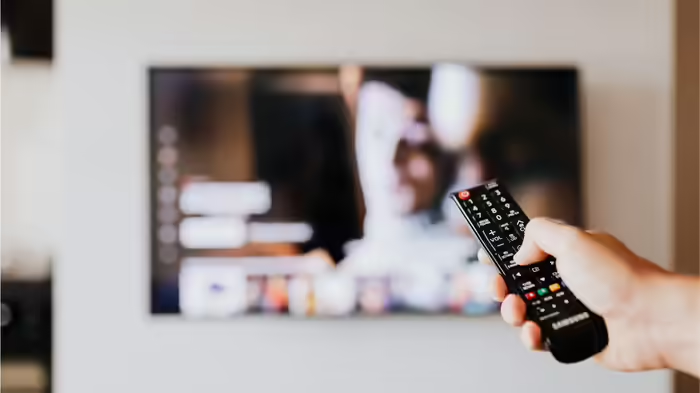
If your smart TV is showing low volume, slow performance, or internet connectivity issues, you don’t always need a technician. These are common problems that can be fixed easily at home. Here’s a step-by-step guide to troubleshoot your smart TV and restore its performance.
Fixing Poor Signal
Sometimes, your smart TV may show poor or no signal, which can be frustrating. First, check all cables, especially HDMI and antenna cables, to ensure they are securely connected to your TV and devices. Next, verify that the TV is set to the correct input or source, whether it’s a cable box, gaming console, or streaming device. If the problem persists, turn off your TV and all connected devices, wait for a few minutes, and then power them back on. A simple restart often resolves temporary signal issues.
Improving Slow Performance
If your TV is running slowly or struggling with video streaming, accumulated cache and cookies may be the cause. Clear them from the settings menu to improve app and overall performance. Remove unused apps to free up storage and reduce system load. Keeping your TV software updated is essential, as manufacturers release updates to fix bugs and enhance performance.
Fixing Internet Connectivity Issues
Slow or unstable internet connections are common. Restart your router and modem to resolve buffering or connectivity problems. Place your TV closer to the Wi-Fi router for a stronger signal, and keep devices like microwaves or cordless phones away, as they can interfere with Wi-Fi performance.
Resolving Low Volume Issues
Low audio can be a major inconvenience. If using external speakers or a soundbar, ensure the correct output is selected in the TV’s audio settings. Check all cables between the TV and audio devices for proper connection and damage. Sometimes, rebooting both the TV and external audio device resolves temporary sound issues.
Fixing Apps That Keep Crashing
If apps keep closing or freezing, update them through the app store. If the problem continues, clear the app’s cache or data to remove corrupted files. As a last resort, you may need to perform a factory reset to restore full functionality.
With these simple steps, you can troubleshoot most common smart TV problems at home, saving time and avoiding unnecessary service calls.
Discover more from SD NEWS agency
Subscribe to get the latest posts sent to your email.