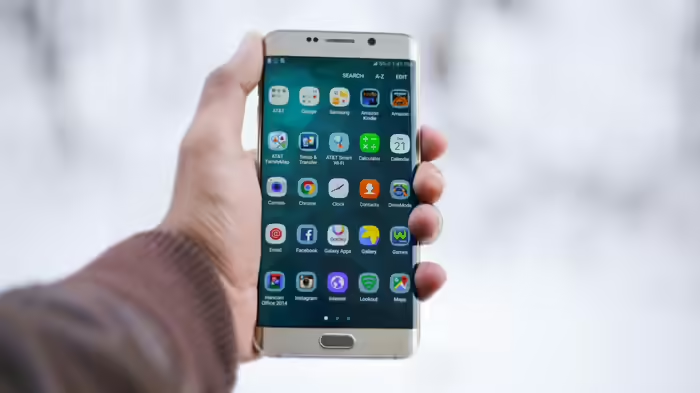
Samsung smartphones are popular worldwide, especially in India, due to their sleek design and user-friendly interface. However, most Samsung phones come pre-installed with several apps that many users never actually use. These apps, often referred to as “bloatware,” consume valuable storage and drain battery life. Removing or disabling them can improve your phone’s performance and free up space. According to a report by ZNet, uninstalling these apps can make your phone run faster, and if needed, they can always be reinstalled later.
Here are 5 Samsung apps you can safely remove:
1. Samsung Free
Samsung Free offers free movies, TV shows, news, and games. However, most of its content is already available on other apps like Samsung TV Plus. With separate tabs for reading and gaming, it duplicates functions found in other apps. Removing it immediately after purchase can help save storage and reduce clutter.
2. Samsung TV Plus
This app provides a free TV streaming service with over 1,200 channels and ads. But with the popularity of streaming platforms like Netflix, Prime Video, or Disney+ Hotstar, most users don’t use it. If you rarely watch TV on your phone, uninstalling Samsung TV Plus can free up significant space.
3. Samsung Shop
Samsung Shop allows users to browse and purchase Samsung products, offering deals on phones, TVs, and other gadgets. The app frequently sends notifications that can be distracting. All offers are also available on the official Samsung website, making this app unnecessary for most users.
4. Samsung Kids
Samsung Kids is designed for young children, providing games and activities in a safe environment. While useful for households with small children, it occupies space unnecessarily on phones without kids. It can also send unwanted notifications. Uninstalling it is safe if you don’t need it.
5. Global Goals
The Global Goals app supports United Nations initiatives, allowing users to contribute through ads or donations. While the concept is commendable, many users rarely open it. Removing it will not affect your phone’s functionality.
First Steps After Buying a Samsung Phone
When you get a new Samsung smartphone, go to Settings and review all pre-installed apps. Uninstall or disable the ones you don’t need. This simple step ensures your phone stays organized, performs better, and preserves battery life. Keep only the apps essential to your needs and remove the rest to maintain optimal performance.
Discover more from SD NEWS agency
Subscribe to get the latest posts sent to your email.